
Mousehop
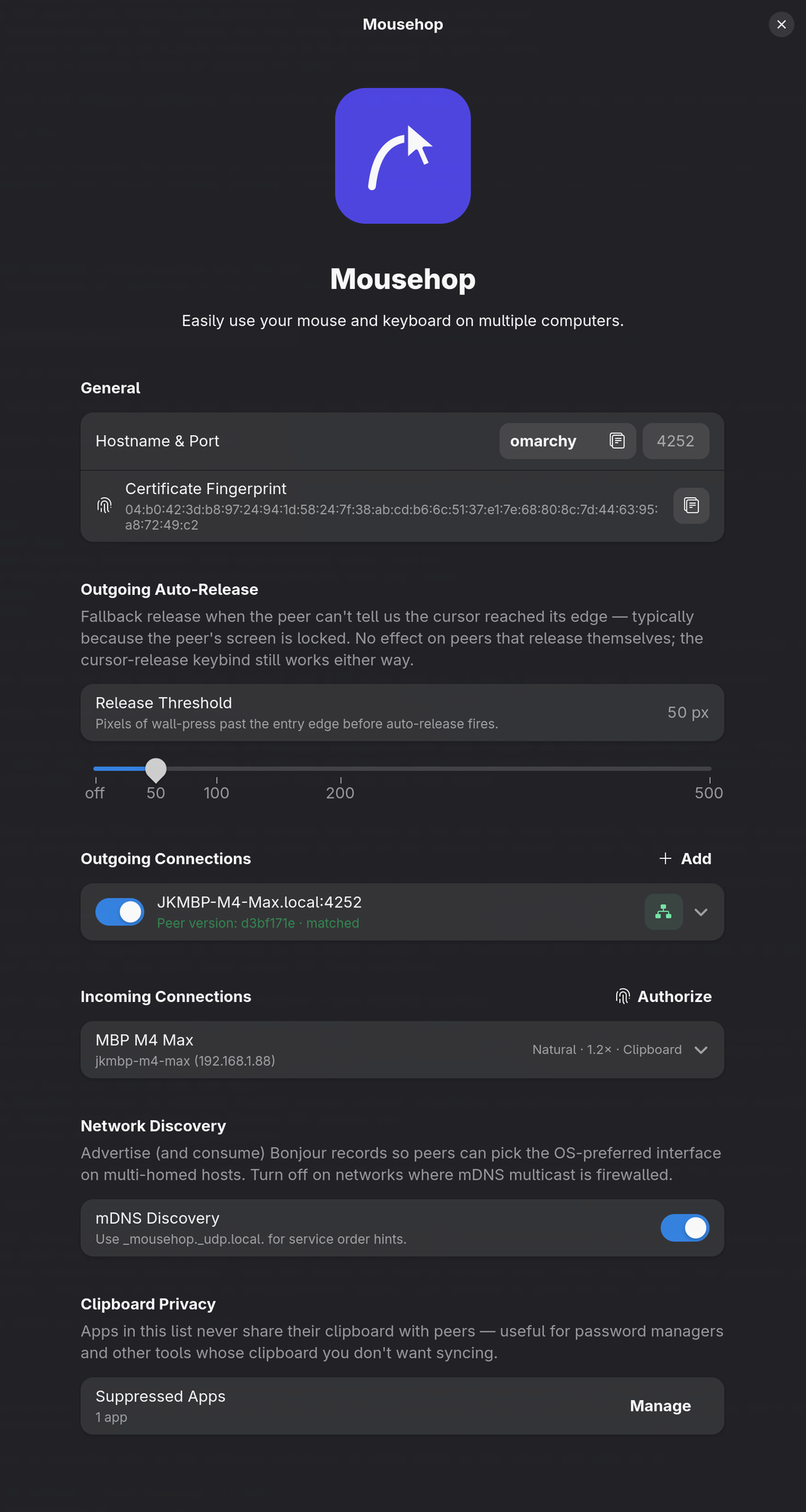
One mouse. One keyboard. Every machine.
Mousehop is an open-source software KVM — glide a single cursor, keyboard, and clipboard across your Linux, macOS, and Windows machines over the local network. No KVM hardware, no cloud.
The name is the whole pitch — your mouse, hopping from screen to screen.
Mousehop is a fork of lan-mouse, Ferdinand Schober's fast, encrypted, cross-platform input-sharing daemon. It keeps that Rust-native core intact and builds on top.
What's new in Mousehop
v0.17.1What this fork adds on top of lan-mouse.
Native macOS app
A proper menu-bar app — no Dock clutter. A native prompt when you grant Accessibility, a TCC watcher that reacts the instant permissions change, and display-wake so a hop from another machine lights the screen back up.
System tray
A real Linux StatusNotifierItem tray icon with a purpose-built glyph, plus the macOS menu-bar item. Closing the window tucks Mousehop away instead of quitting — the daemon keeps running.
Clipboard sync
Bi-directional clipboard text sync between paired machines — off by
default, gated per pair and direction. An app-suppression list keeps
password managers off the wire; on macOS, ConcealedType
clipboards are blocked automatically.
Native key repeat
Hold a key and the forwarded repeats follow the receiving machine's own keyboard settings — initial delay and rate — instead of one fixed speed. Change the sliders and it tracks them live.
Survives sleep & display changes
Reconnects cleanly after a machine sleeps and wakes, and re-reads screen geometry when you attach or unplug a monitor, so the crossing edges stay where you put them.
Auto, Fastest, or pinned
For a peer with several addresses, choose how Mousehop connects: Auto races every address, Fastest locks onto the lowest-latency one, or pin a specific IP per network. Works over IPv4 or IPv6 dual-stack.
Custom release shortcut
Record your own hotkey in Preferences to release captured input and snap the cursor back to the host machine.
Screen-lock aware
Mousehop suppresses edge crossings while the host's screen is locked, so a locked Mac or PC never swallows your cursor.
Seamless handoff
Your cursor keeps its cross-axis position when it crosses to another machine, with wall-press auto-release and host-cursor warp-back.
Sturdier discovery
mDNS-SD primary-IP hints, Bonjour name normalization, exponential dial backoff, and one DTLS listener per local address — connecting just works on real networks.
Peer version exchange
Linked machines trade build versions and the UI soft-warns when they drift apart, so a mismatch is obvious before it bites.
Per-peer tuning
Set natural-scroll direction and pointer sensitivity independently for each connected machine, right from its connection row.
Built on lan-mouse
The foundation Mousehop inherits — every bit of it still works.
Cross-platform input sharing
Share one mouse and keyboard across Linux (Wayland), Windows, and macOS. A software KVM switch — no extra hardware.
Encrypted by default
All traffic runs over DTLS (via WebRTC.rs); machines authorize each other by TLS-certificate fingerprint.
Desktop app, CLI & daemon
A native GTK + libadwaita frontend for managing connections, plus a CLI and a headless daemon mode for systemd.
Many backends
wlroots layer-shell, libei, the xdg remote-desktop portal, Windows, and macOS — chosen automatically for your compositor.
LAN discovery
Machines find each other on the local network by hostname — no manual IP wrangling required.
Written in Rust
A fast, memory-safe, single-binary core that stays maintainable enough to keep growing new backends.
Install
Mousehop runs on Linux (Wayland), macOS, and Windows. Native binaries, Flatpak, AUR, crates.io, and Nix — pick what fits your setup.
macOS
Signed + notarized DMG
Apple Silicon & IntelDownload the .dmg from the releases page and drag Mousehop into Applications. Signed with a Developer ID and notarized by Apple, so Gatekeeper opens it without a detour. Grant Accessibility when prompted — Mousehop lives in the menu bar.
Download.dmgWindows
ZIP archive
x86_64Download the .zip from the releases page and extract anywhere. Run
mousehop.exe. The Windows build isn't signed yet, so
SmartScreen may prompt on first launch.
Linux
Flatpak
Universal — works on any distro. Download
mousehop.flatpak from the latest release, then sideload.
flatpak install --user mousehop.flatpakAUR (Arch)
Three variants: mousehop (source build),
mousehop-bin (prebuilt binary), or
mousehop-git (latest from main).
paru -S mousehopTarball
Prebuilt x86_64 and aarch64 tarballs ship with
every release — for distros without an AUR or Flatpak path.
Build it yourself
crates.io
One command from crates.io. Requires a Rust toolchain — and on Linux, GTK4 + libadwaita headers.
cargo install mousehopNix flake
Build directly from the flake — the executable lands in
result/bin/mousehop.
nix build github:jondkinney/mousehopFrom source
Clone the repo and build with Cargo. See the README for per-distro dependency lists.
git clone https://github.com/jondkinney/mousehop
cd mousehop
cargo build --release
Migrating from lan-mouse? Mousehop reads its own config at
~/.config/mousehop/ and speaks its own wire protocol, so the
two install and run side by side without interfering.
Quick start
Link two machines in about a minute.
-
Install Mousehop on each machine
Put it on every computer you want to share input between — Linux, macOS, or Windows.
-
Add a machine by hostname
On the controlling device, click Add and enter the other machine's hostname and which edge it sits on.
-
Authorize the connection
On the other machine, Authorize the incoming device by its fingerprint — shown in the General section of the sender.
-
Hop
Push your cursor at the screen edge toward the other machine — the keyboard and clipboard (if enabled) follow.
If a peer doesn't appear after a moment, the receiving machine's firewall is almost certainly the cause — Linux usually needs an explicit rule, while macOS and Windows prompt on first launch. See Firewall setup for per-OS instructions.